How to Set Up TollTracker and Track Average Speed – Quick Guide
A quick step-by-step guide to setting up TollTracker and starting to track your average speed in just a few minutes.
TollTracker for iOS and Android
Speed cameras, average speed and enforcement zones, always up to date.
How to Set Up TollTracker and Track Average Speed – Quick Guide
Introduction
Setting up TollTracker takes only a few minutes. Once you complete the initial steps, the app will be ready to monitor your speed and alert you when entering average speed zones.
Below is a simple step-by-step guide showing how to set up the app.
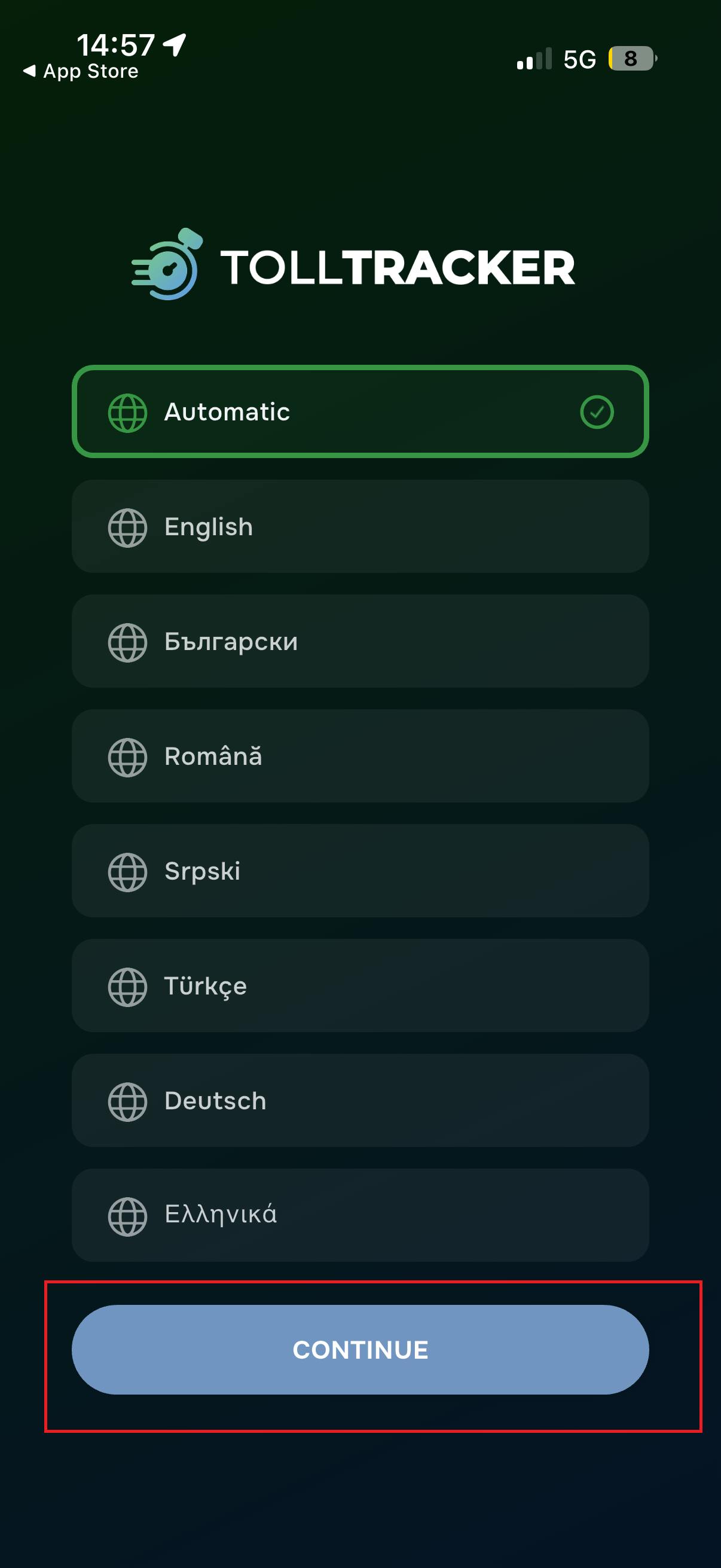
Step 1: Choose a Language
When you launch the app for the first time, you will be asked to choose the interface language.
Important: The entire setup process will be displayed in the language you select. In this guide we use English for demonstration purposes.
You can leave Automatic (language based on your phone settings) or select a language manually from the list.
Then press Continue.
Step 2: Welcome Screen
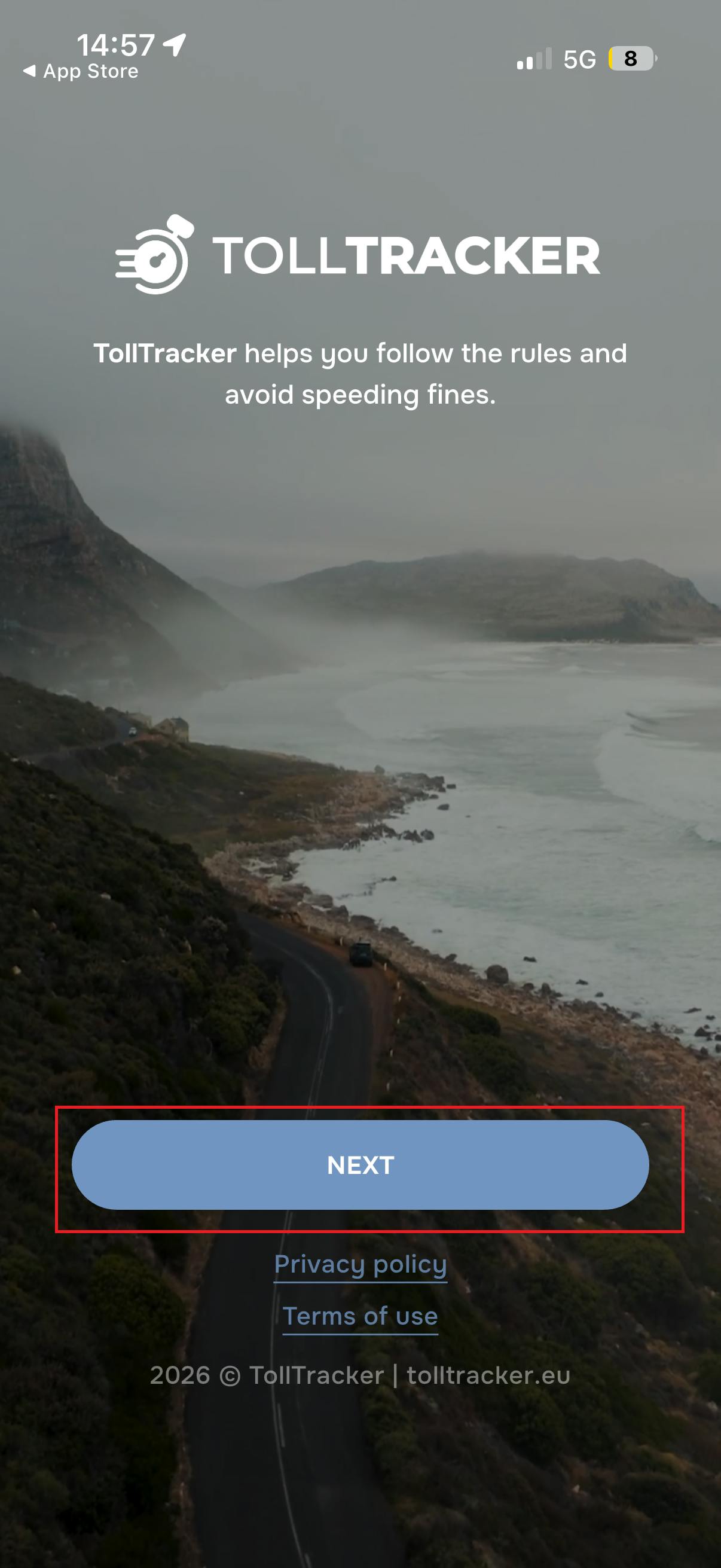
After selecting the language, you will see a short introduction to the app.
Here TollTracker explains that the app helps you monitor speed limits and avoid fines.
To continue, press Next.
Step 3: Sign In or Register
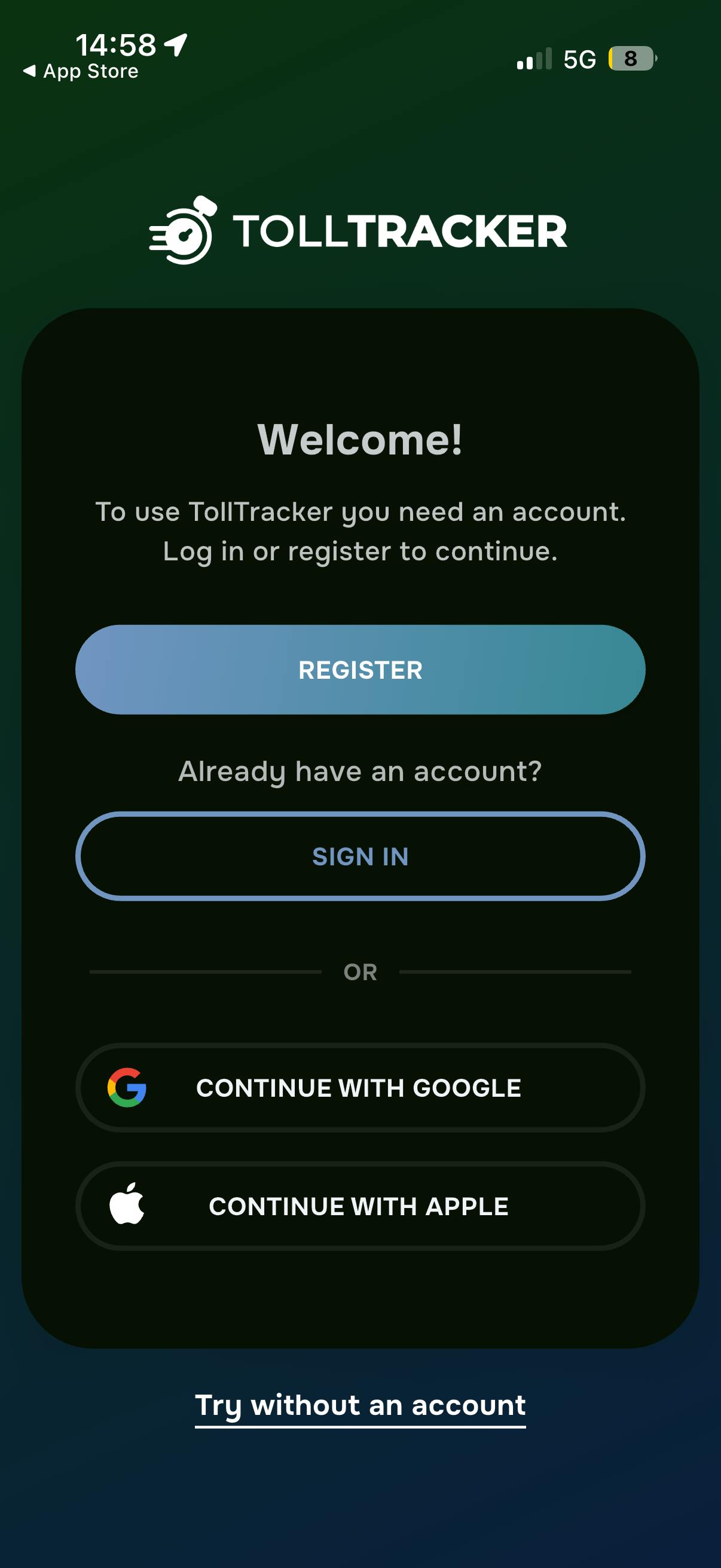
To use the app, you can:
- create a new account (Register)
- sign in to an existing account (Sign In)
- use Google or Apple for quick login
There is also an option Try without an account if you want to test the app without creating an account.
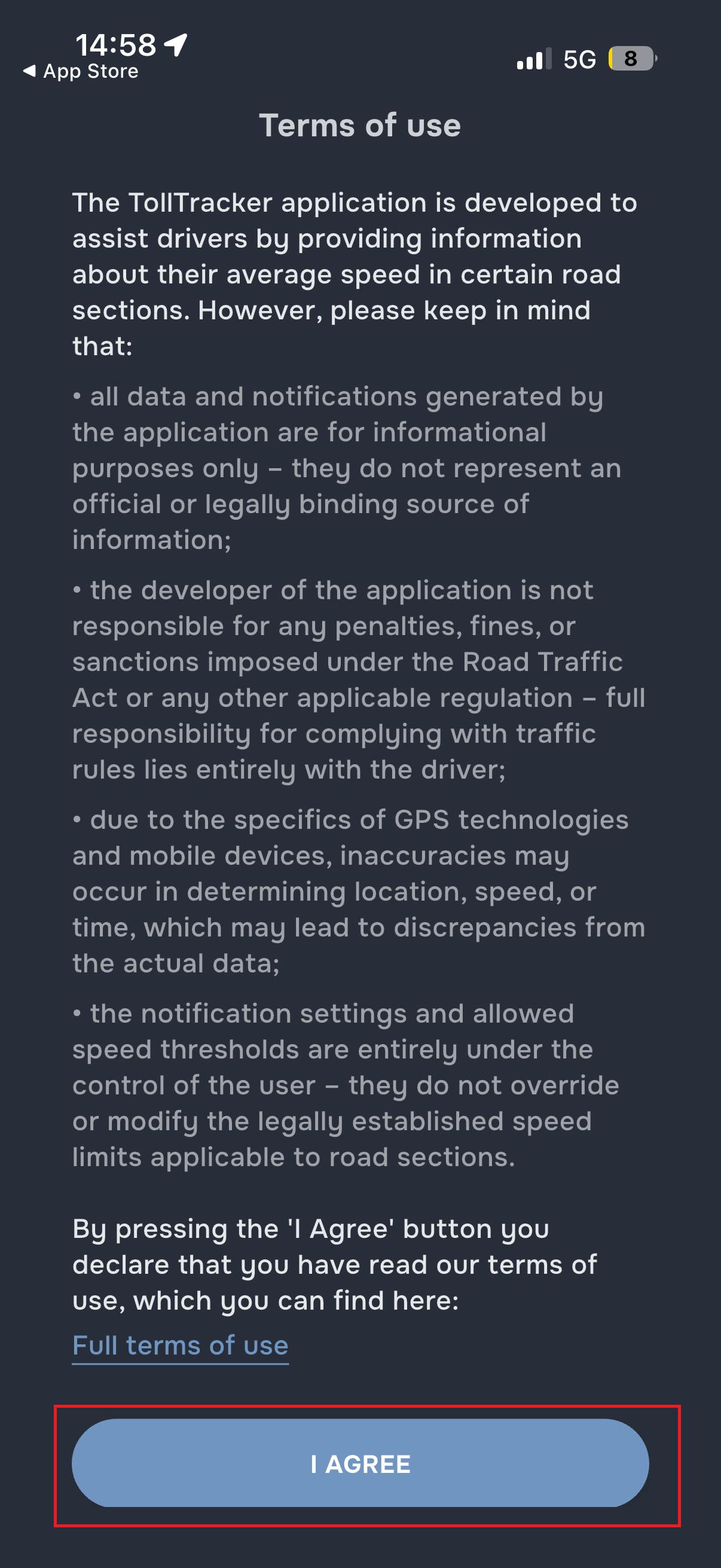
Step 4: Accept the Terms
Before continuing, you need to accept the Terms of Use.
These explain that the app provides information about average speed zones, but the responsibility for following traffic laws always remains with the driver.
Press I Agree.
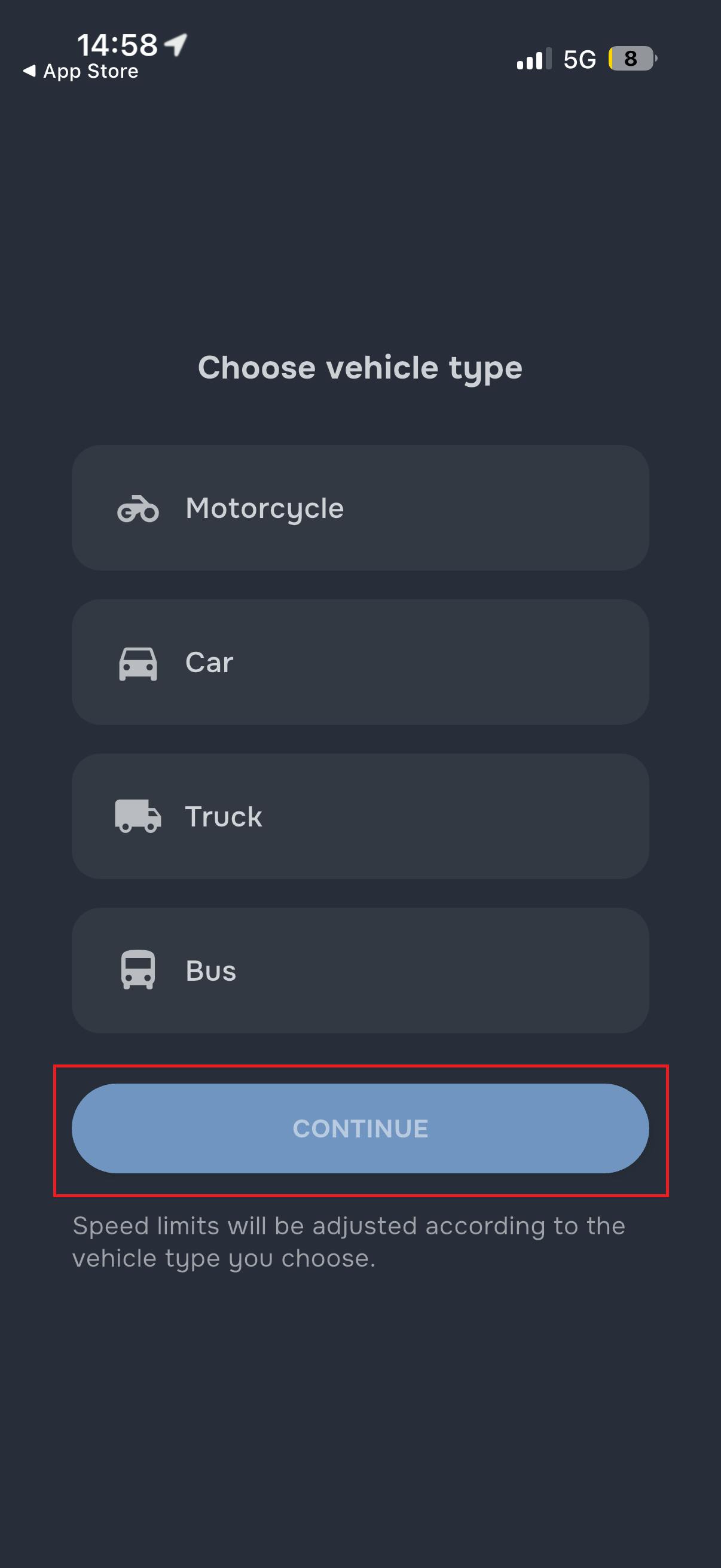
Step 5: Select Vehicle Type
In this step, choose your vehicle type:
- Motorcycle
- Car
- Truck
- Bus
This allows the app to apply the correct speed limits for your vehicle.
After selecting the vehicle, press Continue.
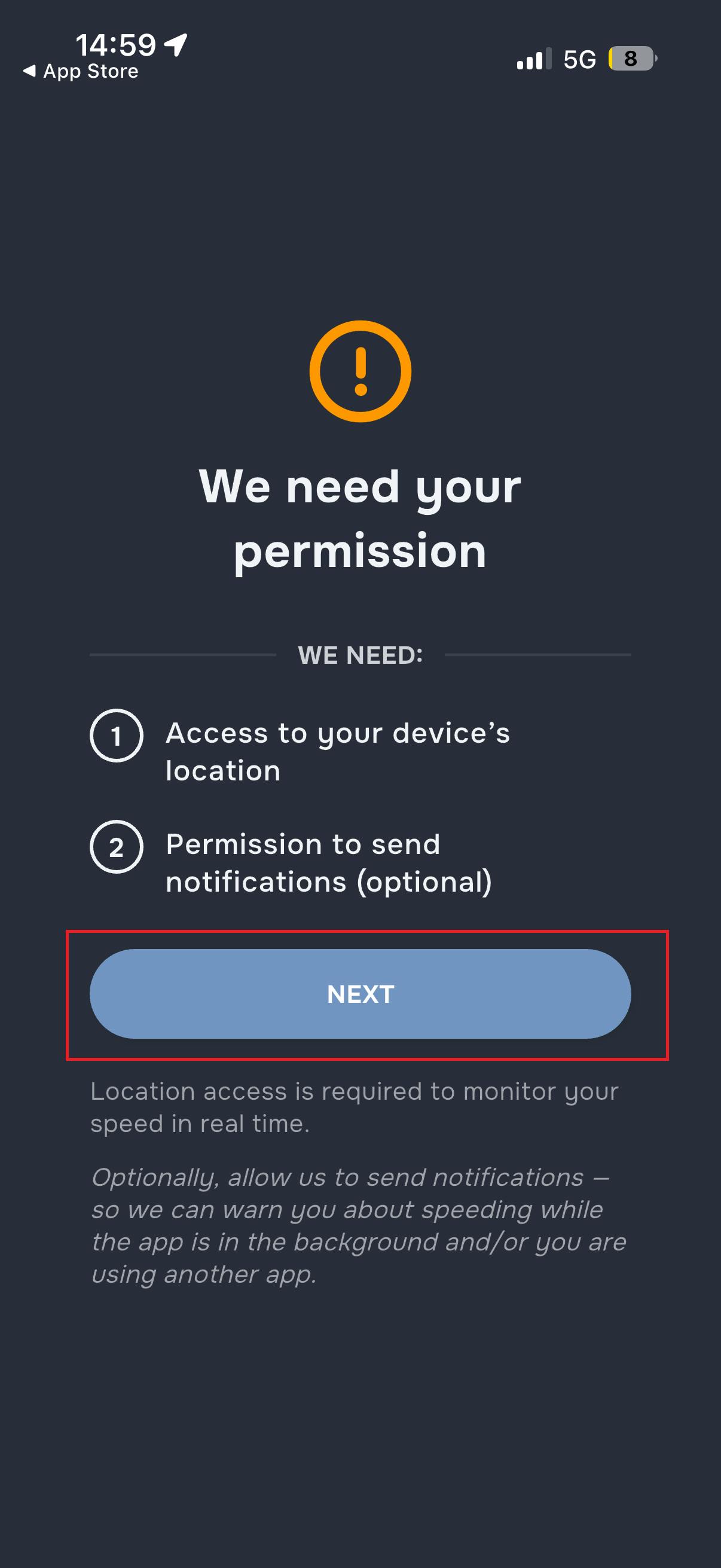
Step 6: App Permissions (Very Important)
The next step requires several permissions from your phone.
This is very important. Without the required permissions, the app will not be able to monitor your speed or notify you correctly about average speed sections.
Press Next to proceed to the permission settings.
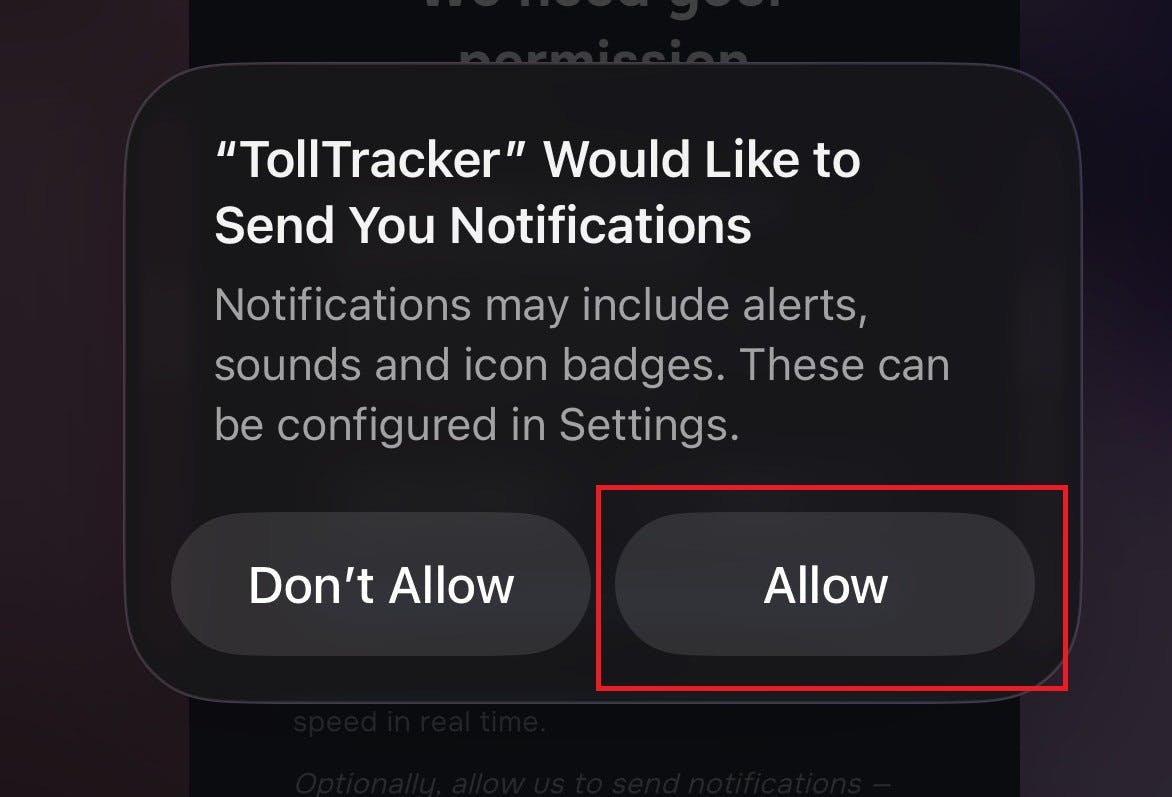
Step 7: Allow Notifications (Required)
Your phone will ask if TollTracker can send you notifications.
👉 You must press Allow.
Notifications are essential because the app uses them to warn you in real time when:
- you enter an average speed zone
- you risk exceeding the allowed speed
- you approach a monitored road section
Without notifications, the app cannot alert you in time while driving.
⚠️ If you select “Don’t Allow”, you will not receive warnings about average speed zones.
To make sure TollTracker works properly while driving, press Allow.
Step 8: Allow Location Access (Critical)
The next prompt will request access to your phone’s location.
This is critical for the app to work correctly. Without GPS access, TollTracker cannot calculate your average speed or detect monitored road sections.
Select Allow While Using App.

Step 9: The App Is Ready
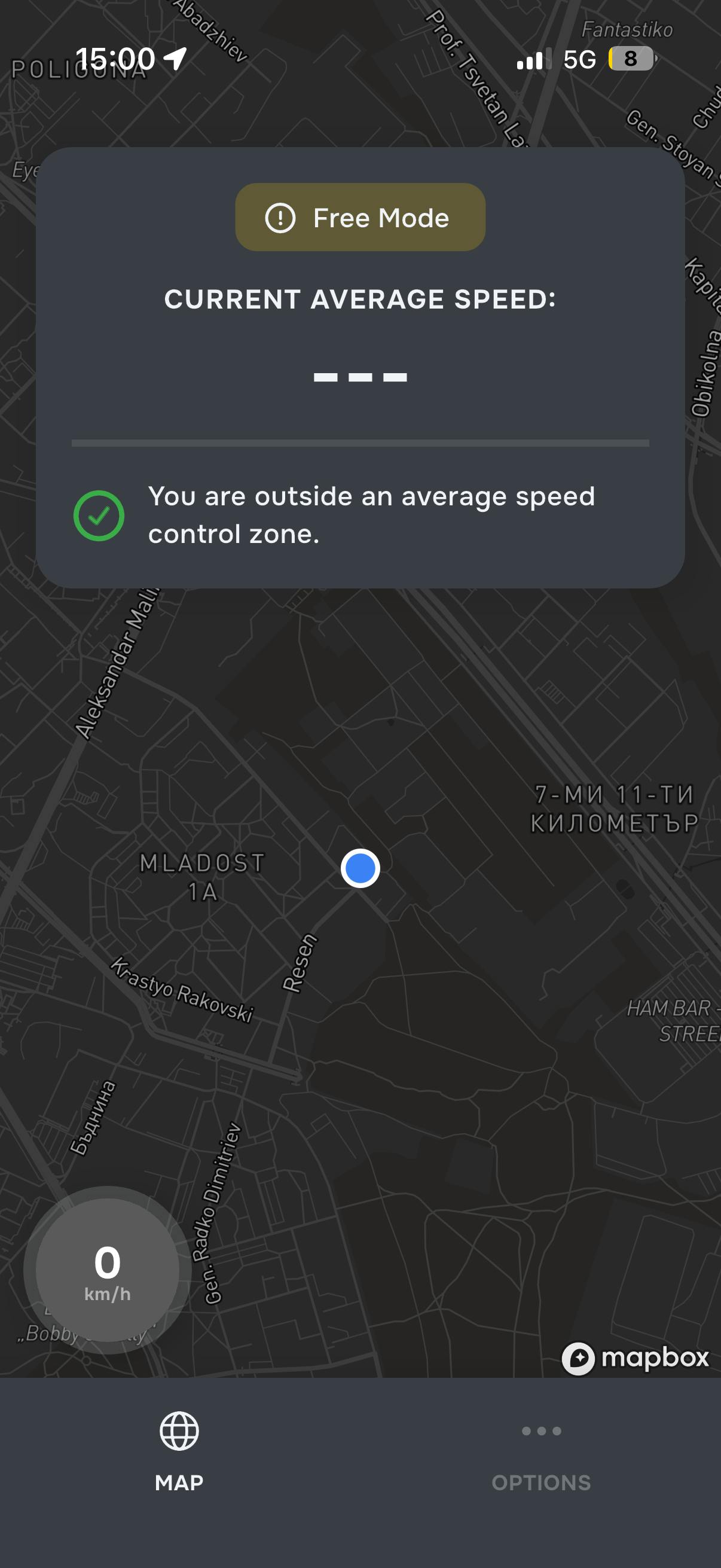
After completing the setup, the main map screen will open.
Here you will see:
- your current location
- your current speed
- information about whether you are inside an average speed zone
From this moment, the app is ready to warn you while driving.
TollTracker for iOS and Android
Speed cameras, average speed and enforcement zones, always up to date.